| Step. 1 |
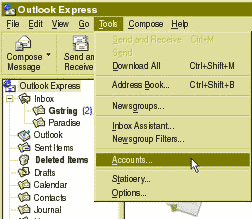
Open Outlook Express. Click "Tools" from the menu bar. From the menu bar that drops down, click on "Accounts".
|
| |
 |
| |
| Step. 2 |
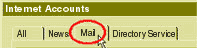
In the window that appears, click on the "Mail" tab.
|
| |
|
| |
| Step. 3 |
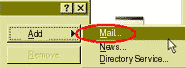
Click on the "Add" button in the upper right corner. Choose "Mail" from the menu that pops up.
|
| |
|
| |
| Step. 4 |
When "Your Name" box comes up, please type in the name you want to appear when you send someone e-mail. Many people will try to identify the sender of a message with this.
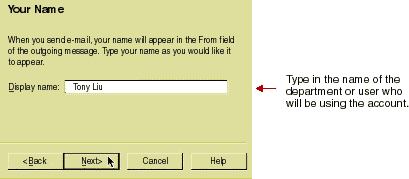
Click on ""Next"" at the bottom to continue. |
| |
|
| |
| Step. 5 |
On the "Internet E-mail Address" box, please type in your e-mail address.
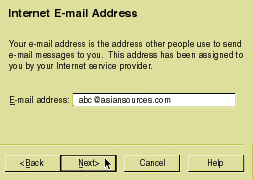
Click on ""Next"" at the bottom to continue. |
| |
|
| |
| Step. 6 |
When a dialog box appears that has the heading "E-Mail Server Names", type in the following information as shown below.
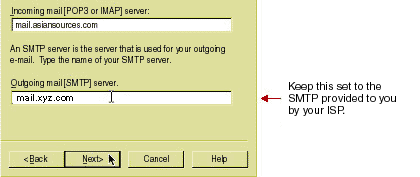
Click on "Next" at the bottom to continue. |
| |
|
| |
| Step. 7 |
Please type in your user name and password on the "Internet Mail Logon" window. Remember, your user name is not your e-mail address
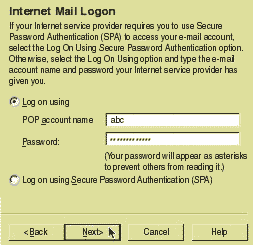
Click on "Next" at the bottom to continue.
*Note: Your user name and password are case-sensitive. Typing abc is not the same as ABC. |
| |
|
| |
| Step. 8 |
On the Friendly Name box, please type in abc or something to help you identify which account you are using.
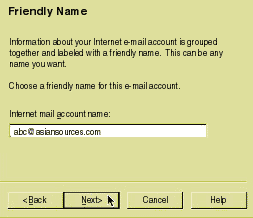
Click on "Next" at the bottom to continue. |
| |
|
| |
| Step. 9 |
Please select "I will establish my Internet Connection Manually" on the Choose Connection Type box.
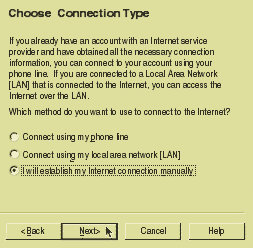
Click on "Next" at the bottom to continue.
*This option is recommended, although you can use one of the other options if you are familiar with Outlook or Outlook Expresss. |
| |
|
| |
| Step. 10 |
Click  |


